Code Extension
Sometimes the conversational flow steps behavior needs to align to more complex business rules that cannot be implemented at design time using the graphical Flow Designer. For example, a hero step should present different buttons with options for each specific user role and conditions. It is very difficult to address dozens of combinations by using the Flow Designer.
Code Extension is a powerful feature that enables you to make hard-coded adjustments to flow steps definition.
To hard-code a flow step, on the desired flow step, click the Code Extension section header, then click the Edit icon displayed next to the desired language (if there are AI Agent additional languages set on the AI Agent). The Code Extension editor appears.
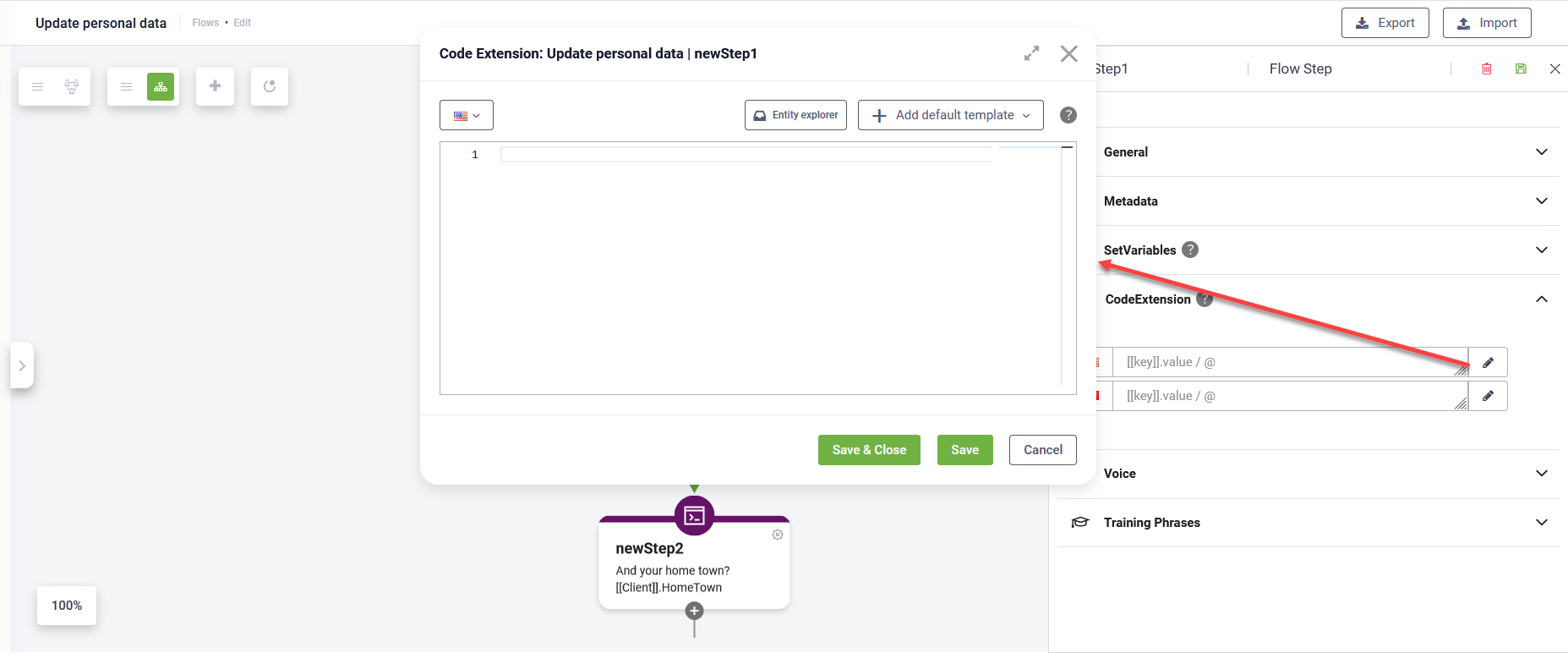
The Code Extension provides you with a set of predefined code templates to help you define your JavaScript code.
To add a template, click the Add default template button (  ) and select the template that best suits your needs.
thisStepValidator.Validate(thisStep); at the end of your code. This ensures that the flow step code is validated before execution, helping to prevent errors and ensure smooth functionality.Use cases for Flow step code extensions
Conditional menus
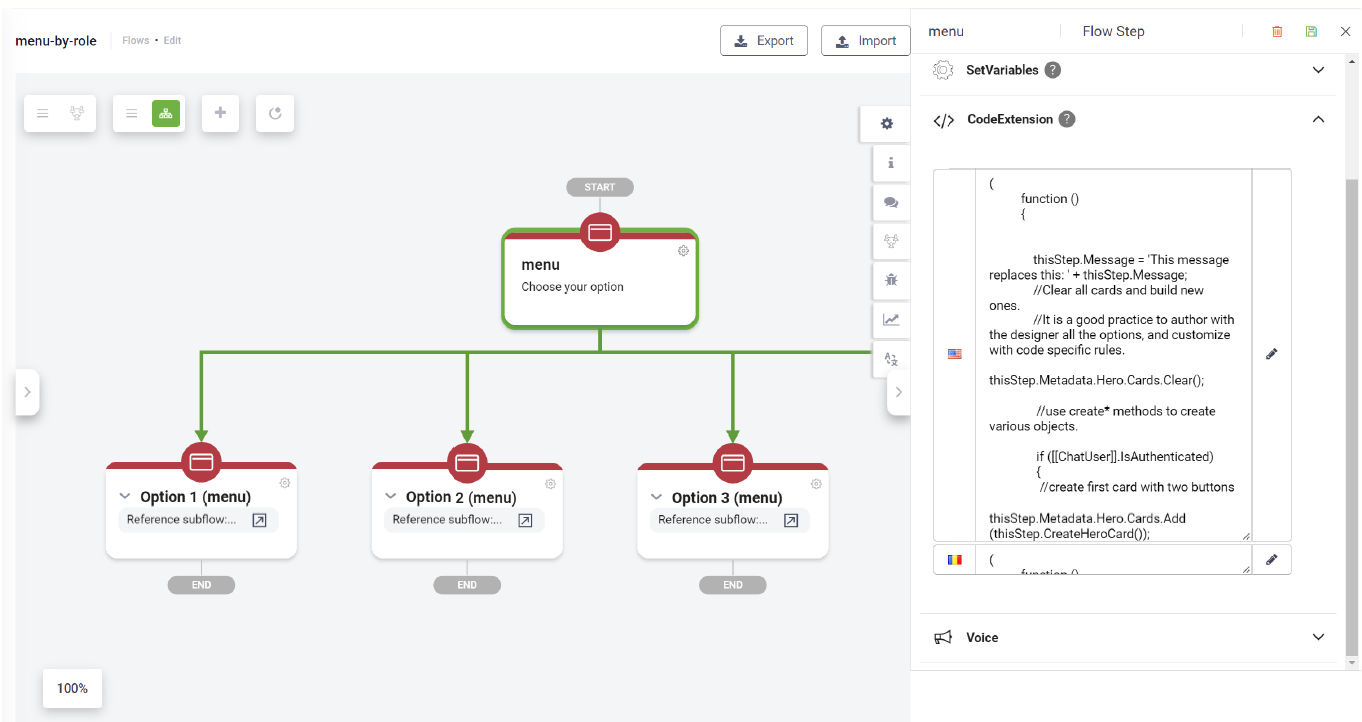
Example: Show a different menu for Authenticated users
(
          function ()
          {

              thisStep.Message = 'This message replaces this: ' + thisStep.Message;

              //Clear all cards and build new ones.
              //It is a good practice to author with the designer all the options, and customize with code specific rules.

              thisStep.Metadata.PostActions?.Clear();

              //use create* methods to create various objects.

              if ([[ChatUser]].IsAuthenticated)
               {
                //create first card with two buttons

                    thisStep.Metadata.Hero.Cards.Add (thisStep.CreateHeroCard());
                    thisStep.Metadata.Hero.Cards[0].Title = "Title 1";
                    thisStep.Metadata.Hero.Cards[0].Subtitle = "Sub title 1";
                    thisStep.Metadata.Hero.Cards[0].Text = "Decsription 1";

                    //need to create the collection first

                    thisStep.Metadata.Hero.Cards[0].Buttons = thisStep.CreateCardActionList();
                    thisStep.Metadata.Hero.Cards[0].Buttons.Add(thisStep.CreateCardAction());
                    thisStep.Metadata.Hero.Cards[0].Buttons[0].Title = "Option 1";
                    thisStep.Metadata.Hero.Cards[0].Buttons[0].Value = "Value 1";
                    thisStep.Metadata.Hero.Cards[0].Buttons.Add(thisStep.CreateCardAction());
                    thisStep.Metadata.Hero.Cards[0].Buttons[1].Title = "Option 2";
                    thisStep.Metadata.Hero.Cards[0].Buttons[1].Value = "Value 2";
              }

              // this is mandatory at the end

              thisStepValidator.Validate(thisStep);
          }
)();
The figure below shows a hero step definition in Flow Designer using the code extension above.
Conditional messages
(
          function ()
          {
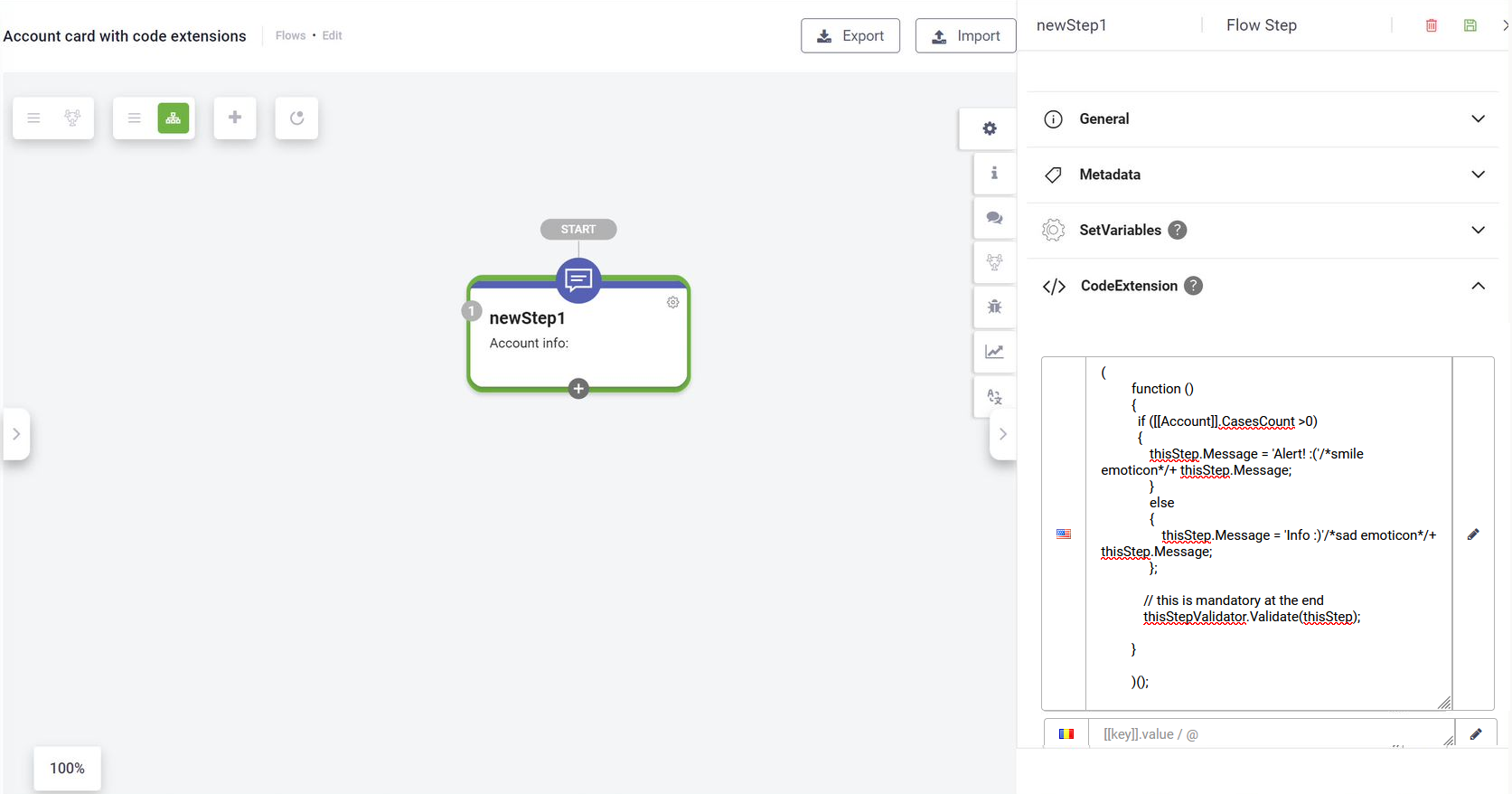
            if ([[Account]].CasesCount >0)
            {
                thisStep.Message = 'Alert! :('/*sad emoticon*/+ thisStep.Message;
                }
                else
                {
                    thisStep.Message = 'Info :)'/*smile emoticon*/+ thisStep.Message;
                };

             thisStepValidator.Validate(thisStep);
          }
)();
The figure below shows a message step definition in Flow Designer using the code extension above.
Data Manipulation
 Set Object
The Set object allows you to store unique values of any type. You can use it to deduplicate data retrieved during a flow or to quickly check if a specific value exists within a large list. This ensures that the data being passed back to the AI Agent is clean and free of redundant entries.
Syntax
new Set([iterable]);
Example
This example demonstrates using a Set object to filter out duplicate product IDs collected during a conversation before saving them to a Flow Variable.
Example
(function main() {
    // Simulated list of IDs collected from user input or an API
    const rawProductIds = ["P100", "P200", "P100", "P300", "P200"];

    // Create a Set object to automatically remove duplicates
    const uniqueIdsSet = new Set(rawProductIds);

    // Convert back to an array for compatibility with Flow Variables
    const finalProductList = Array.from(uniqueIdsSet);

    // Save the cleaned list to the <span class="mc-variable General.AI_Agent variable">AI Agent</span> flow context
    Context.SetFlowVariable("UniqueProductList", finalProductList.join(", "));

    // Log the result for debugging in the Audit Log
    Context.LogRequestTask("Deduplicated product list created:" + uniqueIdsSet.size + " items.");
})();
Logging Messages from Code Extension
You can insert custom messages and debugging statements directly from within a flow step Code Extension. This allows you to track execution state, log variables, or record system milestones at a specific step in the flow execution path.
The platform provides two dedicated methods on the Contextobject to log events:
Context.LogMessage
Inserts an informational message into the Conversation History logs.
Context.RaiseError
The `Context.RaiseError()` method programmatically generates a business exception from within a code execution context.
When this method is executed, it immediately halts the current step execution and triggers the exception handling logic configured for the AI Agent. The error is routed dynamically based on your configuration:
- Step-level error handler. If the current flow step has the Error Handler configured, the conversation immediately follows that specific step-level exception path.
- Global Exception flow. If no step-level handler is defined for the active step, the system falls back to the Exception special flow configured in the Dialogue management section of the AI Agent settings.
The following example demonstrates how to evaluate business validation rules for an account entity and trigger an exception path if the verification fails:
(
    function ()
    {
        // Validate if the account entity contains valid data and is active
        if (![[Account]] || [[Account]].IsActive == false)
        {
            // Write a tracking message to the Conversation History log
            Context.LogMessage("Validation failed: Account entity is either null or inactive.");

            // Clear post actions to prevent execution during a failure state
            thisStep.Metadata.PostActions?.Clear();

            // Raise a descriptive business exception for the flow handler
            Context.RaiseError("Account verification failed: The requested account record is missing or disabled.");

            return;
        }
        // This is mandatory at the end of normal execution paths
        thisStepValidator.Validate(thisStep);
    }
)();
Context.LogDebugMessage
Inserts a message that is strictly accessible to authors within the Conversation Trace interface, allowing you to debug complex flow states without exposing technical details in the Conversation History (client-facing logs).
Code Extension – Error Handling
You can configure the behavior of the conversational engine when encountering an error during code extension execution. This setting controls whether the conversation continues or stops when an error is detected while executing the code provided in Code Extension on a flow step.
When an error occurs, Druid can either skip it silently or raise an exception in the Conversation History, similar to how connector errors are handled.
To configure error handling for Code Extension:
- Go to the AI Agent details > Dialogue management.
- From the Set variable error severity drop-down, select one of the following options:
- Silent – Skips the error and continues the conversation. This was the default behavior in previous releases.
- Raise exception – Triggers an exception and records the error in the Conversation History. Use the Raise exception option to detect configuration issues early and prevent code execution errors during conversations.
- Save the configuration.
For steps that have the Error Handler set, you can author how the error is handled in the conversation. Additionally, you can create a flow dedicated to error handling and select it from AI agent details > Dialogue management section, Exception flow drop-down.
Related Topics